Your phone may suddenly stop responding, lose battery power unusually quickly, or develop a sluggish screen even though the device is still relatively new.
In such cases, users may consider buying a new phone, when the actual problem could be an app consuming excessive resources, a full storage drive, or a charging issue that can be identified before making a costly decision.
A series of simple tests, along with built-in diagnostic tools available on some phones, can help narrow down the possible causes of malfunctions and determine whether the issue is related to software or one of the device’s hardware components.
𝗖𝗵𝗮𝗿𝗴𝗶𝗻𝗴 𝗮𝗻𝗱 𝗕𝗮𝘁𝘁𝗲𝗿𝘆 𝗧𝗲𝘀𝘁
When a phone refuses to turn on or stops charging, the first step is to check the charging cable, power adapter, and electrical outlet, and try compatible accessories known to be in good working condition.
The device can also be left connected to the charger for an appropriate amount of time before attempting to turn it on again, while following the manufacturer’s instructions.
If the phone continues to lose its charge quickly, users can check the battery settings to identify the apps consuming the most power and determine whether the drain is linked to a specific app or occurs even while the device is idle.
High battery consumption alone is not enough to prove that the battery is damaged, as it can also result from poor network coverage, background app activity, or high screen brightness.
𝗣𝗵𝗼𝗻𝗲 𝗦𝗹𝗼𝘄𝗱𝗼𝘄𝗻
Before considering replacing a phone that has become slow, check the available storage space.
Android support guidelines indicate that having less than 10% free storage may be associated with performance issues.
Users can delete unnecessary files, remove apps they no longer use, then restart the device and monitor its performance.
It is also advisable to install available system and app updates, as they may fix bugs that affect stability.
If the slowdown began after installing a particular app, testing the phone in Safe Mode—which temporarily disables apps downloaded by the user—may help determine whether one of them is causing the problem.
𝗦𝗰𝗿𝗲𝗲𝗻, 𝗔𝘂𝗱𝗶𝗼, 𝗮𝗻𝗱 𝗖𝗼𝗻𝗻𝗲𝗰𝘁𝗶𝘃𝗶𝘁𝘆
To test the screen, open different apps and try tapping and scrolling across various areas, while checking that the issue is not caused by a screen protector or case interfering with certain functions.
For audio problems, users can play an audio file, make a test call, and check the microphone by making a short recording.
If there is a connectivity issue, try connecting to another Wi-Fi network or check the network and Bluetooth settings, depending on the nature of the problem.
These steps can help identify the affected function, but they cannot, on their own, determine whether the underlying cause is hardware damage or a software malfunction.
𝗗𝗶𝗮𝗴𝗻𝗼𝘀𝘁𝗶𝗰 𝗧𝗼𝗼𝗹𝘀
Samsung Galaxy phones offer a diagnostic tool through the Samsung Members app, which allows users to test the battery, screen, microphone, camera, connectivity, and other components, depending on the model and software version.
Google’s guidance for Android phones also recommends checking system updates, storage space, and apps when dealing with repeated restarts or sudden freezes.
By contrast, users should not immediately resort to a factory reset, as it erases data stored on the device. A backup should therefore be created before performing one.
𝗣𝗿𝗼𝗳𝗲𝘀𝘀𝗶𝗼𝗻𝗮𝗹 𝗥𝗲𝗽𝗮𝗶𝗿
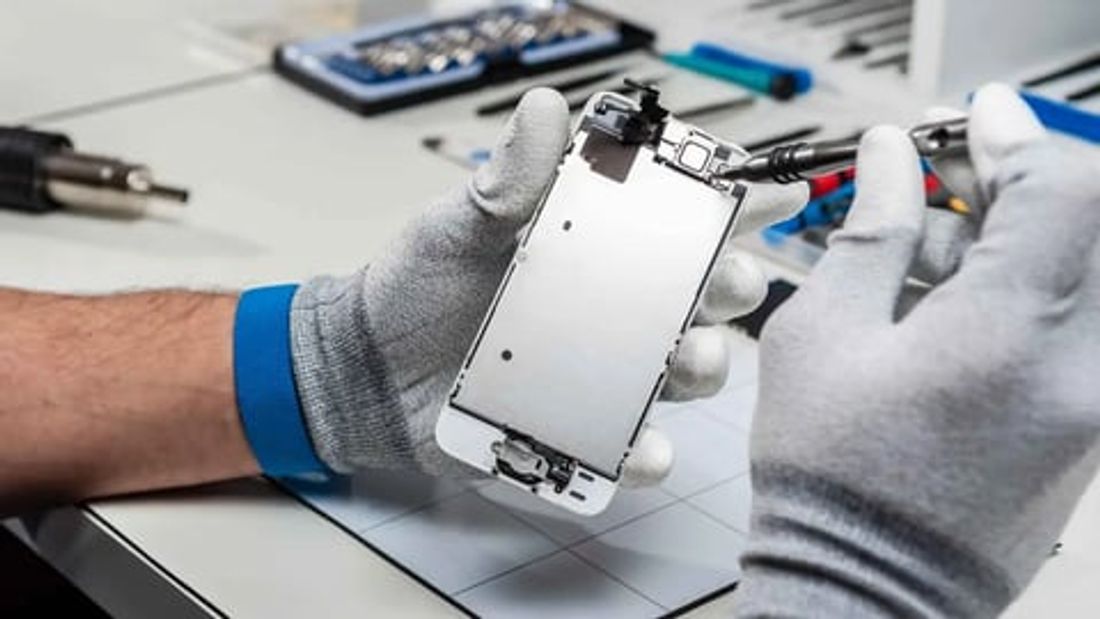
If the problem persists after the basic tests, or if there are signs of damage to the screen or charging port, the phone may need to be inspected by a qualified technician.
Users should stop using and charging the phone if its battery has swollen, if it becomes unusually hot, or if there are clear signs of physical damage.
Ultimately, not every performance issue means that a phone has reached the end of its lifespan.
Initial tests may reveal a problem that can be resolved through an update or an appropriate setting, while professional diagnostics can help users make an informed decision about whether to repair or replace the device.
𝗦𝗼𝘂𝗿𝗰𝗲: 𝗲𝗿𝗲𝗺 𝗻𝗲𝘄𝘀